
MS Access As A Dev Tool
Access continues to be a highly efficient tool for business database development.
 Call (323) 285-0939
 If your Access database is running slow, throwing errors, or freezing when more than one person is using it, we can help you get stable again. We fix broken forms and reports, repair corruption, and track down why the file is struggling. Common causes include missing indexes, bloated tables, duplicated records, or VBA that is doing heavy work inside a loop.
If your database has outgrown a single Access file, we can keep Access as the interface your staff already knows and move the tables to SQL Server for speed, reliability, and multi-user stability. Call (323) 285-0939 for a free consultation and a clear plan.
Tacoma organizations rely on Microsoft Access for scheduling, job tracking, inspections, inventory, and internal reporting. When an Access database starts slowing people down, the effect is immediate. Reports hesitate before opening. Forms pause after clicks. Staff members begin exporting data to spreadsheets just to keep work moving.
MS Access Solutions works with Tacoma businesses to stabilize and extend existing Access databases without forcing a ground-up rewrite. We repair fragile forms and reports, reduce multi-user conflicts, and clean up data structures that have stretched beyond their original design. When growth pushes Access past a single file, we upsize the data to SQL Server while keeping Access as the familiar front end.
If the cause is not obvious, we start with a focused review. We look for queries that scan entire tables, missing indexes, imports that quietly duplicate records, and VBA routines that have become hard to maintain over time. You get clear findings, realistic priorities, and recommendations that fit how your staff actually works.
MS Access Solutions is led by Alison Balter, a Microsoft Certified Partner and Microsoft Certified Professional who has built and repaired Microsoft Access systems for organizations across the U.S. Alison is the author of 15 Access training books and videos and is a long-time conference speaker who teaches practical, real-world techniques that hold up under daily use.
When you call us, you are not routed through layers of account people. You work directly with an expert who can read your queries, trace form events, and spot design problems fast. We listen, ask questions, and recieve input from the people who actually use the database, then we map the workflow to tables, relationships, and forms that make sense.
Tacoma clients often reach out after inheriting a database that "mostly works" until it does not. Maybe a key report breaks right before month-end. Maybe linked tables drop, or a combo box takes 30 seconds to load. We stabilize the weak spots first, then improve performance and reliability so your staff can stop working around the database and start trusting it again.
If you are planning for growth, we can also keep Access as the familiar interface while moving data to SQL Server. That gives you stronger security, safer backups, and better multi-user performance without forcing a complete rewrite.


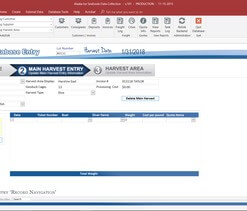





Access continues to be a highly efficient tool for business database development.
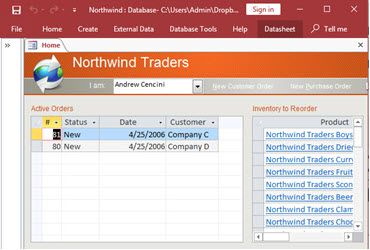
How to create a Microsoft Access application with some useful tips and best practices.
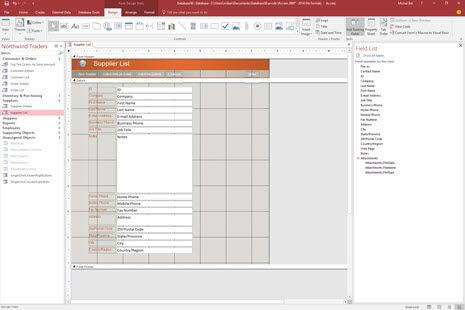
Your Access developer near you has practical advice on choosing and working with an Access consultant.
Performance issues in Microsoft Access usually show up gradually, not all at once. What feels like a small delay at first can quietly turn into daily frustration for everyone using the database.
"Slow" usually shows up as interruptions. A report that used to run quickly starts taking a minute, then two. A form pauses after you click a button. People click again because nothing seems to happen. Then you get duplicate records, lock messages, or a screen that says "Not Responding" right when everyone is trying to finish a task.
Most of the time, the issue is not Access "getting old." The database has grown, but the design and query patterns did not evolve with it. Access is fast when forms load only what a user needs and when queries can find records without scanning entire tables.
Indexes are the difference between a fast lookup and a full table scan. If staff filters by date, job number, status, or customer, those fields often need the right indexes. Without them, each new year of data makes the system feel heavier, especially in combo boxes, search forms, and reports.
Indexes also need to match reality. Adding random indexes can slow down data entry. The goal is to add the right indexes in the right places, then confirm the improvement with a measurable before and after result.
Another common issue is the "everything query." Over time, calculations pile up, nested expressions grow, and joins get complicated. The query still works, so it stays. But every time a form opens, Access has to evaluate all that logic again.
A cleaner approach is to split complex logic into simpler steps. Stage results, reduce expensive expressions inside joins, and remove SELECT * when it pulls columns you never use. Those changes usually improve speed and make the database easier to maintain.
If a user is working on today's work orders, they should not load five years of history just to open a form. Loading huge recordsets makes screens feel slow and increases multi-user conflicts. Filtering early, loading on demand, and limiting subforms often makes an immediate difference.
We start by identifying the exact objects that create the pain: the specific report, form, or button that triggers a delay. Then we check indexes, query plans, joins, and the record sources behind the screens that staff uses most. Many performance fixes are focused cleanups, not rebuilds. You should be able to say, "That report went from minutes to seconds," and everyone notices.
If the database is well designed but still struggles with volume or user count, moving tables to SQL Server while keeping Access as the front end is often the practical upgrade. You keep your familiar forms and reports, but you gain stronger concurrency, better backups, and a back end built for heavier workloads.
MS Access Solutions focuses on fixes that support real work. We look at how your database is used, then make practical changes that improve speed, stability, and confidence during the workday.
Answer: Early warnings include random "needs to be repaired" messages, forms that suddenly stop saving, and new errors after a network hiccup. In multi-user setups, corruption risk goes up when everyone opens the same file over a shared drive instead of using split front ends. A quick health check can identify risky patterns and put safer sharing, compact/repair routines, and backups in place before the file fails.
Answer: The most reliable approach is a split database with a local front end for each user and a shared back end for the tables. We also tune record locking, limit heavy forms from loading huge recordsets, and clean up long-running queries that create bottlenecks. For Tacoma organizations with busy front desks or dispatch workflows, these changes can reduce freezes, duplicate entries, and "someone else has the record" errors.
Answer: Yes. Many slow reports are caused by unindexed fields, queries that do unnecessary calculations, or tables that have grown without cleanup. We focus on the report's record source, add the right indexes, simplify joins, and stage complex logic so Access does less work at runtime. Your staff keeps the same buttons and report layouts, but the output runs faster and more consistently.
Answer: We start by inventorying tables, queries, forms, reports, and VBA modules, then mapping the dependencies that drive your day-to-day tasks. Next we reproduce the top pain points—failed exports, broken buttons, or month-end reports that time out—so fixes are based on evidence, not guesses. After stabilization, we add clear naming, comments, and simple documentation so future changes are safer.
Answer: It depends on what you have today and what needs to change. If the workflow is solid and users rely on Access forms and reports, keeping Access as the front end can be the fastest path to improvement. When data volume, security, or concurrency becomes the limiting factor, moving tables to SQL Server while keeping the Access interface is often the practical upgrade.
Answer: In most cases, we move the tables to SQL Server, relink them in Access, and then tune queries and VBA to work efficiently with the new back end. Users usually see the same screens, but the system gains better concurrency, stronger backups, and better performance with larger datasets. For Tacoma groups handling inventory, inspections, or production tracking, this approach keeps the familiar interface while improving reliability.
Answer: Yes. We can train your in-house developers or power users on the specific patterns used in your application, including forms, reports, and VBA routines. Training is most effective when it is tied to your real objects and your real data, not generic examples. You also get practical guidance on backups, change control, and a safer release process so improvements do not break production.
Get more information about our programming services on the Microsoft Access Programmer Vancouver, Washington web page.